
In the administration, you can access the agendas via Administration menu > System > Agendas.
General information about setting up agendas is available HERE Next, we will focus on the specific settings of the agendas in the Helpdesk module.
In the left part of the agenda settings you will find the sections Basic data, Record numbering, Workflow and Emails and communication.
Basic data

- Module = Helpdesk
- Agenda name - option to define the name of the agenda. Required option.
- Agenda Code - Unique code that can be further used in request numbering.
- Active - option whether the agenda is active in the application.
Record numbering

- Default - Selects the numbering format from the number series in the application according to the selected module in the settings of the agenda.
- Custom - Type your own mask definition in the field in a format where the asterisks are then replaced with a consecutive number series, in short. So, for example, the format "HD****" will generate the number "HD0001" for the first record and "HD0002" for the second record, etc. In the case of a custom mask definition, the filled value is automatically stored among existing number series and is marked as a locked number series.
Workflow

- Process - Workflow that you will use in the given agenda.
- Default State - Definition of the default state from the workflow process you selected. This is the state the contract gets when it is created in the system.
- Cancelled Status - The status(es) that indicate the cancellation of the contract.
- States Completed - Status(es) that indicate the end of the contract process.
Emails and communications
This section allows you to set how email communication should be managed within a given agenda.
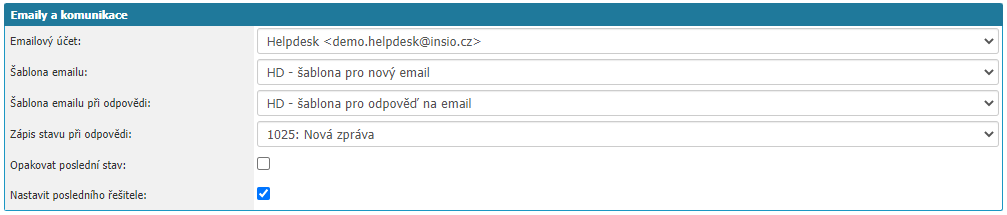
- Email account - selection of the email account that will be used for sending email from the given agenda. Select from the already set up account in the application.
- Email Template - select the email template to be used for a new email in the given agenda.
- Reply email template - select the email template to use for the reply in the given agenda.
- Response Status Record - option to select the workflow status that is set when a reply email arrives in the application.
- Reply last status - option sets again the workflow status that was before the reply was received.
- Set last solver - option sets the solver who was the last solver in the workflow when the workflow state changes.
In the right part you will find tabs Settings, Document Transfer, Actions Allowed, Agendas Due.
Settings
In the tab you can find the specific agenda settings for the Helpdesk module.
Request entry - settings
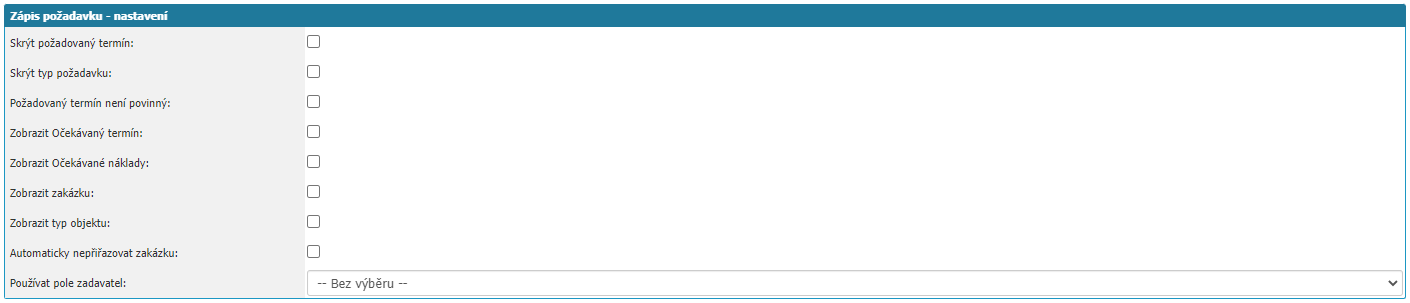
- Hide Required Term - option hides the selection of the Required Term value when writing a request of the given agenda. This setting is only used for forms that do not have the option to set Controls.
- Hide Request Type - option hides the Request Type option in the request of the agenda. This setting is only used for forms that do not have the option to set Controls.
- Required deadline is not mandatory - if the option is active, the Required deadline for the request entry of the agenda is not mandatory. The setting is only used for forms that do not have the option to set Controls.
- Show Expected Date - the option makes the Expected Date option available in the request of the agenda. The setting is only used for forms that do not have the option to set Controls.
- Show Expected Costs - this option makes the Expected Costs option available in the request of the agenda. The setting is only used for forms that do not have the option to set Controls.
- Show Job - the option makes the Job available when creating a request. The setting is only used for forms that do not have the option to set Controls.
- Show Object Type - the option makes the Object Type available when creating a request. The setting is only used for forms that do not have the option to set Controls.
- Do not automatically assign job - the option prevents the automatic addition of the job in the request.
Request entry - default values

In this section you can set the values that will be default when creating a request for a given agenda:
- Request Type - option to select the request type from the dial list that will be pre-populated for new requests in the given agenda.
- Priority - option to select the priority from the dial that will be pre-populated for new requests in the given agenda.
- Feedback - option to select feedback from the dial that will be pre-populated for new requests in the given agenda. This is an informative value for users only.
- Order - option to select an order from the dial that will be pre-populated for new requests in the given agenda.
- Attachment Type - option to select the attachment type that will be pre-filled for users when they insert an attachment on a request in the given agenda.
Request Attributes

- Show Request Subject - option will show the subject of the request. This setting is only for forms that do not have the option to set Controls.
- Allow manual entry of request number - this option allows users who enter the request into the application to enter the request number. This setting is only for forms that do not have the option to set Controls.
- Hide priority - option hides the priority selection for users who write the request to the application. This setting is only for forms that do not have the option to set Controls.
- Show End Date - this option displays the End Date field. This setting is only for forms that do not have the option to set Controls.
- Show Billing Information - the option displays the Billing Information field. Settings are only for forms that do not have the option to set Controls.
- Show Offer Delivery Date - the option displays the Offer Delivery Date field. This setting is only for forms that do not have the option to set Controls.
Other settings
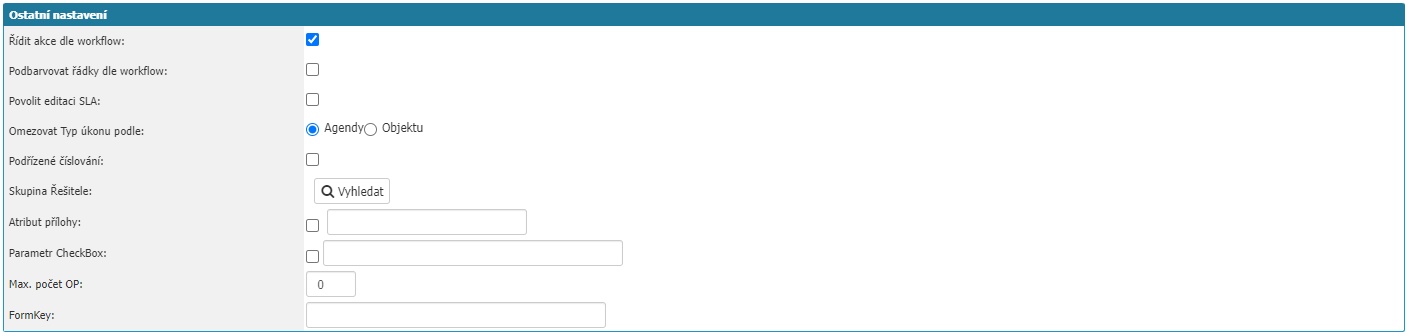
- Manage actions by workflow - historical setting which is used only in the form sys_docrada_detail.aspx.
- Color rows according to workflow - this option will cause the requests to be colored in the report (hd_review.aspx) according to the color set for the workflow status.
- Enable SLA editing - historical setting which is only used in the sys_docrada_detail.aspx form.
- Limit task type by - option to choose between Agenda and Object. Depending on the option, it is possible to assign a Request Type to the request in the given Agenda.
- Subordinate numbering - the option causes the requests that arise from the request of the given agenda to be numbered as subordinate. For example, if you create a request from request HD***** to a follow-up agenda, this new request will inherit the number HD***** plus add a sub-number to it, so the format will be HD*****.01 etc.
- Solver Group - historical setting which is used only in the form sys_docrada_detail.aspx.
- CheckBox parameter - option to output a custom value/text to the request detail for which the checkbox will be.
- Max number of OP - setting for maximum number of Teachings in the request.
Scheduler - calendar
This setting is used to automatically change the workflow state when a request is scheduled by a user in the Scheduler or when a request is removed by a user in the Scheduler.

- Write state on insertion - option to select the state that is set on the request that you assign in the scheduler to a specific user.
- When removing, write status - the option to select the status that is set on the request you remove in the scheduler to the user.
Global Settings

The Show subsequent workflow states in document as buttons option sets the workflow states to be displayed as buttons in the request detail, not just as text with an icon.
Document transfer

In this section you can define the workflow status if the requests of the agenda are to be sent to another system using a special service or procedure. It doesn't have to be just an accounting system. It is possible to define workflow status for export, after successful export or after unsuccessful export.
Allowed actions
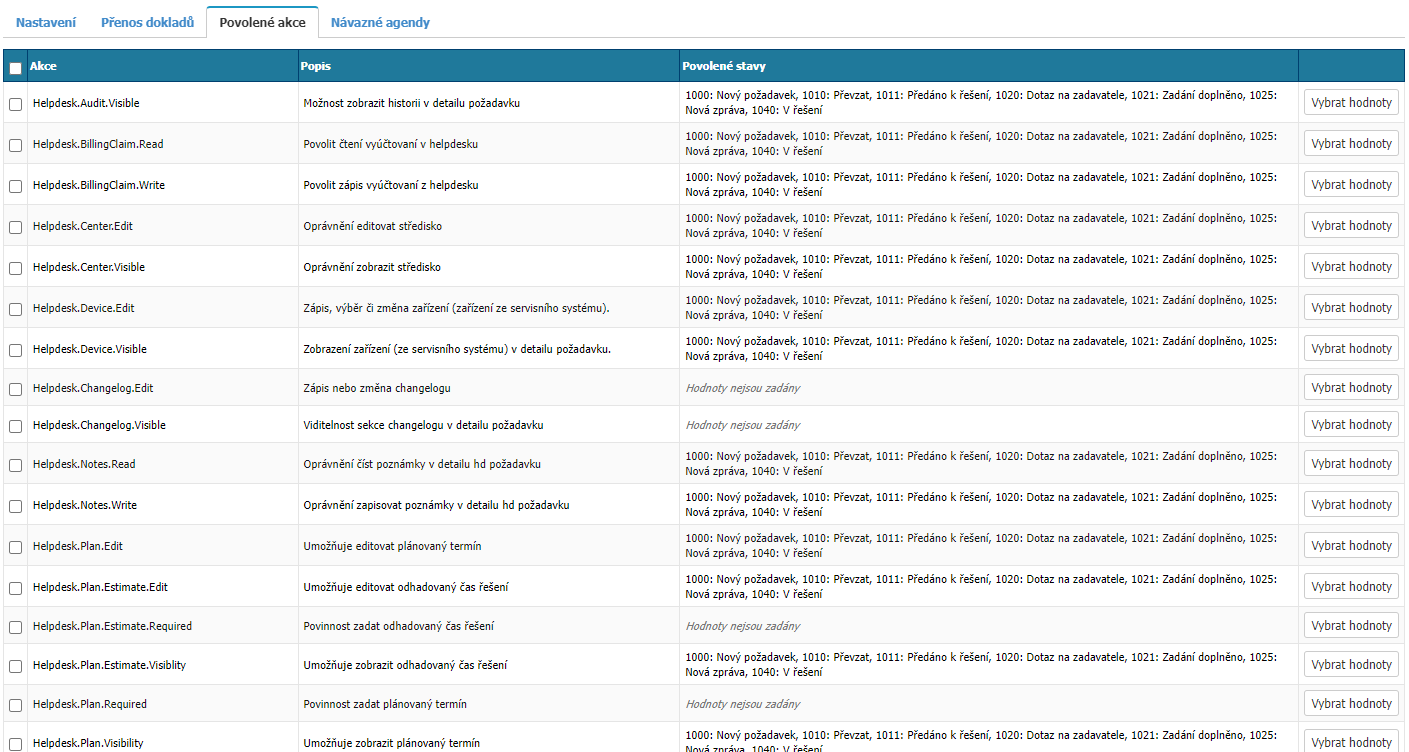
In this section you can find options for setting individual actions that users can perform in selected workflow states on a request in a given agenda. For completeness, please see below for a list of all enabled actions for agendas in the helpdesk module.
Actions Allowed
| Action | Description |
|---|---|
| Helpdesk.Audit.Visible | Option to view history in request detail |
| Helpdesk.BillingClaim.Read | Enable reading of billing in helpdesk |
| Helpdesk.BillingClaim.Write | Enable writing billing from helpdesk |
| Helpdesk.Center.Edit | Permission to edit the center |
| Helpdesk.Center.Visible | Permission to view the center |
| Helpdesk.Device.Edit | Write, select or change a device (device from the service system). |
| Helpdesk.Device.Visible | Display the device (from the service system) in the request detail. |
| Helpdesk.Changelog.Edit | Write or change the changelog |
| Helpdesk.Changelog.Visible | Visibility of changelog section in request detail |
| Helpdesk.Notes.Read | Permission to read notes in the detail of a request |
| Helpdesk.Notes.Write | Permission to write notes in the hd request detail |
| Helpdesk.Plan.Edit | Allows you to edit the scheduled date |
| Helpdesk.Plan.Estimate.Edit | Allows you to edit the estimated solution time |
| Helpdesk.Plan.Estimate.Required | Required to enter estimated solution time |
| Helpdesk.Plan.Estimate.Visiblity | Allows you to view the estimated solution time |
| Helpdesk.Plan.Required | Obligation to enter estimated time |
| Helpdesk.Plan.Visibility | Allows you to view the estimated time |
| Helpdesk.RequestedDate.Edit.Everyone | Permission to change the requested date |
| Helpdesk.RequestedDate.Edit.Requestor | Allows the requestor to change the requested date |
| Helpdesk.RequestedDate.Read | Visibility of requested date |
| Helpdesk.RequestedDate.Required | Obligation to select the requested date |
| Helpdesk.Technology.Edit | Permission to edit technology |
| Helpdesk.Technology.Visible | Permissions to view technology |
| Helpdesk.WorkOrder.Read | Permission to view maintenance in the helpdesk |
| Helpdesk.WorkOrder.Write | Permission to write actions from the helpdesk |
| HelpdeskActivityRead | View Activity |
| HelpdeskBusinessCaseShow | Business Case View |
| HelpdeskContractorEdit | Selecting or changing a contractor |
| HelpdeskContractorRequired | Supplier selection obligation. |
| HelpdeskContractorVisibility | Supplier visibility (no change). |
| HelpdeskContractRead | |
| HelpdeskCteniFaktUdaje | Invoice data reading |
| HelpdeskCreateCostType | Ability to read cost types |
| HelpdeskCustomerEdit | Allows you to edit the customer |
| HelpdeskCustomerRequired | Obligation to select customer |
| HelpdeskCustomerVisibility | Allows to view the customer |
| HelpdeskDelete | Ability to delete a helpdesk request |
| HelpdeskDescEdit | Edit description |
| HelpdeskEditGuarantor | Edit request guarantor |
| HelpdeskEventsEdit | Permission to write a new event |
| HelpdeskEventsVisibility | Permissions to view tab reports |
| HelpdeskExpectedCostsEdit | Allows to edit expected costs |
| HelpdeskExpectedCostsRequired | Obligation to enter expected costs |
| HelpdeskExpectedCostsVisibility | Allows to view expected costs |
| HelpdeskExpectedDateEdit | Allows you to edit the expected date |
| HelpdeskExpectedDateRequired | HelpdeskExpectedDateRequired |
| HelpdeskExpectedDateVisibility | Allows you to view the expected date |
| HelpdeskFileAtt1Enable | File Attribute 1 - Editing |
| HelpdeskFileAtt1Visible | File attribute 1 - display |
| HelpdeskCommunicationReading | Communication tab (reading emails and messages) |
| HelpdeskObjectRead | Object View |
| HelpdeskOpportunityCreate | Permission to create opportunities from a request |
| HelpdeskOpportunityRead | Permission to read opportunities from a request |
| HelpdeskOrdersRead | Read Orders |
| HelpdeskOrderWrite | Write New Order |
| HelpdeskAttachmentsDelete | Permission to delete attachments |
| HelpdeskAttachmentsWrite | Permission to save document as attachment to helpdesk request |
| HelpdeskProductEdit | Permission to edit product |
| HelpdeskProductRead | View Product |
| HelpdeskQuotationCreate | Permission to create quotations for a request |
| HelpdeskQuotationRead | Authorization to read request quotes |
| HelpdeskReadGuarantor | View Request Guarantor |
| HelpdeskRelatedReqRead | Parent and child requests - read |
| HelpdeskRelatedReqWrite | Parent and child requests - write |
| HelpdeskRequestorEdit | Selecting or changing the requestor |
| HelpdeskRequestorRequired | Required Requester Selection |
| HelpdeskRequestorVisibility | Supplier visibility (no change) |
| HelpdeskShowHdNumber | Allows writing or editing the request number for a given status |
| HelpdeskSolverEdit | Request solver editing |
| HelpdeskSolverRequired | Required solver selection |
| HelpdeskSolverVisibility | View request solver |
| HelpdeskSourceEdit | Edit resource in request detail/record |
| HelpdeskSourceRequired | Obligation to select a resource in the request detail/record |
| HelpdeskSourceVisibility | Visibility of the resource in the request detail/record |
| HelpdeskTitleEdit | Title Editing |
| HelpdeskOrderRead | OrderView |
| HelpdeskEntryDateEnd | Allows entry or editing of End Date for a given status |
| HelpdeskEnterExpectedCost | Allows you to enter expected costs |
| HelpdeskEnterExpectedDate | Allows you to enter an expected date |
| HelpdeskScheduleSchedule | HelpdeskScheduleSchedule |
| HelpdeskChangeActivity | Change Activity |
| HelpdeskChangeDoNotes | Allows you to edit the delivery date of the quote for a given status |
| HelpdeskChangeInvoiceData | Change invoice data |
| HelpdeskChangeObject | Change Object |
| HelpdeskChangePriority | Change priority |
| HelpdeskChangeResponsor | Change resolver data |
| HelpdeskChangeSeries | Change helpdesk series |
| HelpdeskChangeTypeOfTask | Change of task type |
| HelpdeskChangeOrder | Change Order |
Returning agendas

In the tab you can set follow-up agendas for the given agenda. Thus, if it happens that another request/document is created in the system from one request - from a request an action, from a request a quotation, from a request an order, etc., it is necessary to set up links between individual agendas where the need to create new requests/documents from other requests/documents arises.
New record

In the section you can set a new follow-up agenda.
- Agenda - select the agenda in the application to which the agenda should be linked. Mandatory option.
- State - selection of the default workflow state if a new request/document is created as a follow-up.
- Enrollment Parameters - if the user attributes in the source document and the target document match, their values are copied during enrollment.
- Change Parameters - in case of identical user attributes between follow-up documents, when a change is made in only one of them, it is overwritten (updated) in the other document.
- Default - this option is valid only in the following modules:
- Billing documents - when billing is performed, it is primarily billed to the agenda that is the follower and default.
- Mail sent - in the case of a reply to mail, the reply is written primarily to the follow-up agenda that is marked as the default.
- Save Number - this option is only functional for agendas in the Contracts module.
The settings must be confirmed with the Save option.
List of downstream agendas
in this section you can find all the follow-up agendas and their settings which you can edit or unbind via the trash option.
